ZeroClaw: From Zero to Super Powered assistant.
The Promise (and the Fine Print)
In the last 6 months or so, the internet has gone viral with a phenomenon called OpenClaw. Programmers, Indie hackers, and DIY enthusiasts are all trying out different configurations with the bot to automate their daily workflows and create solutions.
For the uninitiated, OpenClaw is an AI agent that you can install on your own hardware or cloud and talk to it using channels like WhatsApp, Discord, Telegram, etc. You ask it to do things for you, and it does that like a diligent assistant.
So now every Tony Stark can have their own Jarvis.
I am a little late to the game, but the Electronics engineer inside me says, I want more. More like I want less. Something that consumes less memory, less CPU and so on.
Tony Stark didn’t buy his Iron Man suit off a shelf. He built it in a cave with a box of scraps. Different constraints, same energy. I have an old 2012 version Mac Mini, and I use it for many things, and my first target was to host my Jarvis on it. More on that later.
Somewhere in my internet browsing, I came across ZeroClaw, which is essentially a lightweight, self-hosted agent runtime. The promise (I mean tagline):
You own the agent. You own the data. You own the machine it runs on.
I also found an article that talked about its performance stats. It said 5mb RAM usage and 10 ms startup times. I was immediately like - “Where do I sign up?”
Per the documentation, ZeroClaw is a single Rust binary. It talks to LLM providers, connects to messaging channels you already use, and acts through tools on your machine. You can ask it to do all things that OpenClaw can.
All of that at a much lower hardware cost. It’s a poor Tony Stark’s Jarvis.
The fine print, though, as with most open source projects, is that the line “you own it” implies that practically means you maintain it. There is no support team to call when the agent does something creative with your filesystem at 3 AM. This is the trade-off, and it is worth understanding before you install anything.
What You Need
You don’t need a Malibu mansion and a reactor in your chest, but you do need a Linux machine and a Discord server. So here is the list:
- A Linux machine. Even a Raspberry Pi will do. (In my case, that is - Kali Linux 2025.4, x86_64, running on a 2012 version Mac Mini with no further Apple MacOS updates)
- A Discord account and a private server (create one at discord.com if you do not have one)
- An opencode API key (from your opencode account) or a key from another provider (OpenAI, Google, Claude or whatever else compatible)
- 30 minutes (may be more if we run into troubleshooting issues)
ZeroClaw is a binary. So it does not need Node.js, Python, or any runtime you might already have installed. The installer handles everything, which is either reassuring or terrifying, depending on your relationship with curl, Linux command pipes and bash. Thankfully, their installer also offers “uninstall”. So theoretically, one can clean up without too many issues. Time for practice.
Before You Install: Who Runs This Thing
At the time of writing, the zeroclaw quickstart skips over some details, and it matters for any always-on agent that takes instructions from remote channels.
ZeroClaw runs as whoever invokes it. If that is your everyday user, the one in the docker group, the one with passwordless sudo, then your agent inherits every one of those privileges. Linux does not distinguish between “you running a terminal command” and “your AI agent running a terminal command.” They share the same user, the same groups, the same keys.
For an agent you invoke in a terminal session and watch, this is acceptable. For an agent running as a background service, connected to a chat channel (such as Discord or Telegram), trusting instructions implicitly based on the configured channel, it is a different category of risk. A prompt injection in a webpage the agent reads, a skill that contains a surprise, a compromised chat account; All of these can instruct the agent to use its privileges in ways one did not intend.
Therefore, we give the agent its own identity.
sudo useradd -r -s /usr/sbin/nologin zeroclawThis creates a system user with no interactive login, no sudo, no Docker, no group memberships beyond its own. A blank slate.
Verify:
groups zeroclawYou should see exactly:
zeroclaw : zeroclawIf you see anything else, such as docker, sudo, wheel, your system defaults added it. Investigate before proceeding. Everything from here on runs as this dedicated user. The agent has access to exactly what you explicitly give it, nothing else.
1. Install ZeroClaw
Open a terminal. Download the installer, then run it as the zeroclaw user:
curl -fsSL https://zeroclawlabs.ai/install.sh -o /tmp/zeroclaw-install.sh
sudo -u zeroclaw sh /tmp/zeroclaw-install.sh
The installer asks whether you want a prebuilt binary (fast, recommended) or a source build (slower, customisable). Choose prebuilt. You are setting up an assistant, not contributing to the Rust ecosystem today.
Both paths end the same way: zeroclaw quickstart launches automatically.
If the wizard timed out or you closed the terminal in a panic, run it manually:
zeroclaw quickstartThis provides for doing either a CLI quickstart (recommended for technical users) OR a browser-based start. I’ll choose the latter.
I see the output:
🦀 ZeroClaw Gateway listening on http://127.0.0.1:42617

  🌐 Web Dashboard: http://127.0.0.1:42617/
I am logged on to this machine through SSH, so the browser is not exactly accessible, but I can solve for that by SSH tunnelling into that port and directing my browser to a localhost port.
ssh -L 8888:127.0.0.1:42617 Username@<IP of BoT Server>Then I can launch it on localhost:8888 in my browser, and I am ready to go. The dashboard requires a pairing code, but that is available in the CLI, so that’s easy.
2. Quickstart (Few questions, No DevOps Certification Required)
Quickstart walks you through four steps. One prompt per step. This is the part where the project earns its “simple” claim.
Cost Tracking
A caution before we begin. ZeroClaw has a built-in cost tracking system that monitors token usage and calculates expenditure when models are used through its own provider layer. It seems elaborate, and one can configure rates for each provider and model. This feels interesting, but best left for future exploration.
A quick tip: Create a separate API key on your Opencode account dedicated to the bot. The Opencode dashboard then shows exactly how much that specific key spent, giving you clean per-bot cost visibility. For other providers (OpenAI, Anthropic, Google), likely the same approach should work.
This way, whether ZeroClaw tracks it natively or not, you always have a cost signal from the provider end.
Model Provider
I am using opencode from the provider list. ZeroClaw has a first-class opencode slot. I am going for the opencode Go setup, so I need a URL as well.
When prompted:
- Provider: opencode
- API key: paste your opencode key
- Model: mimo-v2.5
- URL: https://opencode.ai/zen/go/v1/chat/completions
Risk Profile
Choose a preset. For a personal assistant on your own machine or a remote server, the Balanced profile works. It has some limits on what it can do with the machine. So the blast radius so to speak, if something goes wrong, is small.
If using a separate device or a Docker instance, then you can afford to reset the device / delete the instance. Then you may have to start over if things go wrong, and there is the risk of losing all data.
Runtime Profile
Keep it Tight. It limits the capabilities of the agent, but that is better since we don’t want to be paying huge bills. I would also recommend setting budget limits and a separate API key at the Model Provider end if possible, so one has control when the bot goes crazy.
Memory
Pick a backend. Markdown is the simplest option. Zero configuration, stores everything locally in human-readable files. Other options exist (Postgres, Qdrant, SQLite), but Markdown is fine for a personal assistant. You are not building a data warehouse.
Agent
Give your agent a name and an alias. This is how you reference it from the CLI and channels.
Personality Files
The UI offers several files, such as IDENTITY.md, SOUL.md. Assuming one does not have them already best to start with the provided templates.
That’s it. We’re now ready to play. Let’s hit “Create”
The wizard writes your config to ~/.zeroclaw and takes you straight to the chat screen.
Chat
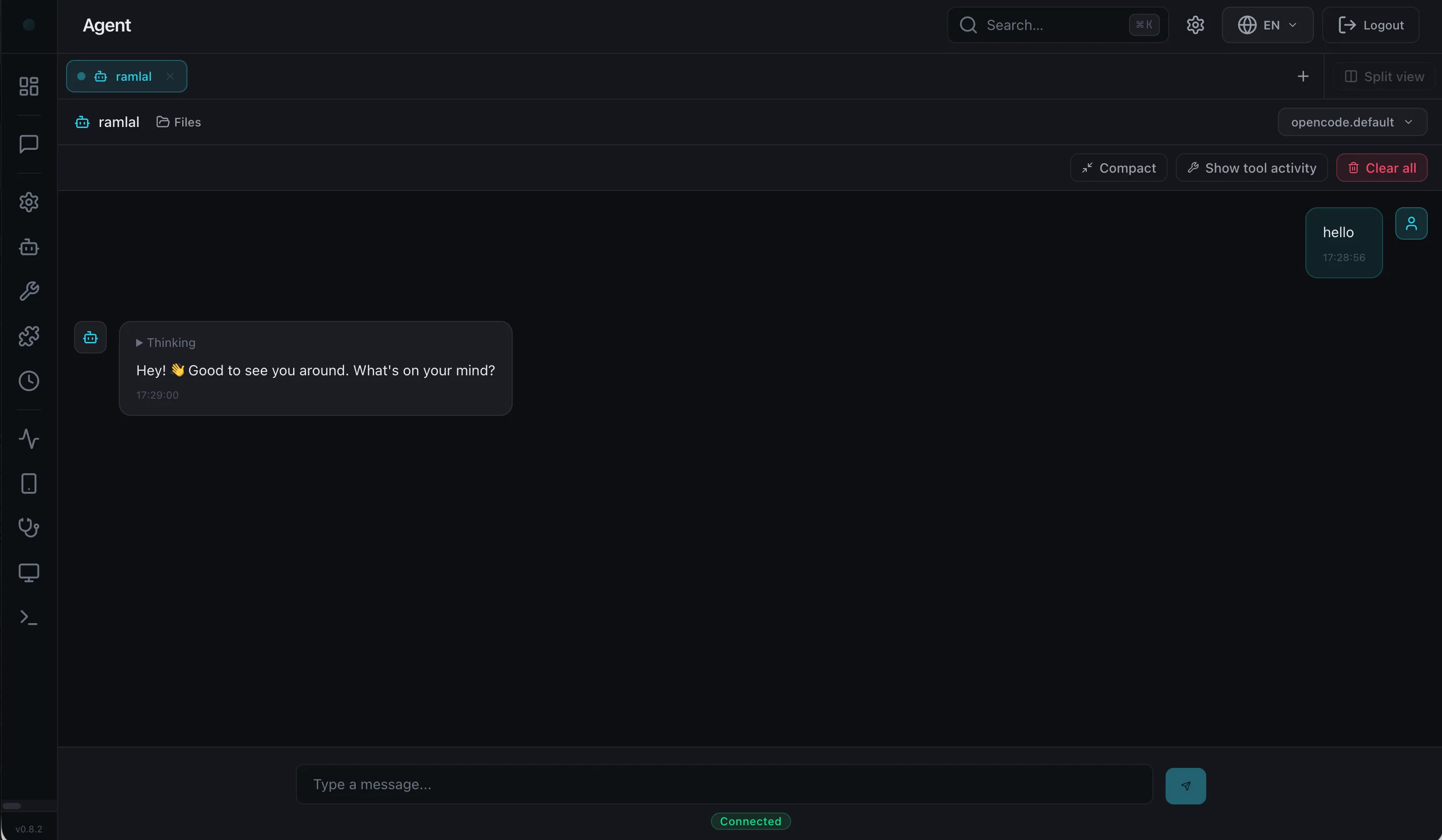
The built in Chat screen should work already. Time to say hello.
hello
Hey! 👋 Good to see you around. What’s on your mind?
3. Create a Discord Bot
This is the part that takes the most clicks, but each step is straightforward. Think of it as the bouncer checking your ID at the door of your own party.
Create the Application
- Go to the Discord Developer Portal.
- Click New Application, give it a name (e.g., “ZeroClaw”), and click Create.
- In the left sidebar, click Bot.
- Click Reset Token, then Copy. This is your bot token. Treat it like a password. You cannot see it again.
Enable the Two Switches
Still on the Bot page, scroll to Privileged Gateway Intents and toggle both:
- Message Content Intent (so the bot can read what people type)
- Server Members Intent (so it can see who is in the server)
Click Save Changes. If you skip this, the bot connects but never sees any messages. This is the single most common “my bot does nothing” cause, and it is entirely self-inflicted.
Set up the Token in ZeroClaw
On the ZeroClaw dashboard, look for the settings gear in the left navigation. It offers a UI for some powerful feature configurations. For today, we care only about Channels. The detailed instructions are in the documentation for Discord
The documentation contains a lot of detail, and there is no point in just pasting it again here. Therefore, I have listed the minimum tasks required to get it working. Look up the Channel list, find Discord and get started.
- Give it a Name
- Control the Behaviour - Approval Timeout Secs (I’d recommend giving at least 2 mins so you can see and act on the approvals), Slash Commands.
- Under “Control” - set the token
Look up our Agent in the Agent list on the left navigation.
- Edit our agent and add the channel that we just created to it.
Look up “Peer Groups”.
- Create a new Peer Group for authorising who can talk to the bot.
- Add allow list users.
- Associate our Agent with this peer group.
After all the changes, reload the daemon so the changes take effect.
Invite the Bot
- Back in the Developer Portal, open OAuth2, URL Generator.
- Under Scopes, check bot.
- Under Bot Permissions, check at least: Send Messages, Read Message History, View Channels, Use Slash Commands, Use External Emojis.
- Copy the URL at the bottom, open it in your browser, pick your server, and click Authorise.
The bot now appears in your member list (offline until you reload the daemon of ZeroClaw).
4. Start and Test
Test it:
- Open Discord.
- Send a message in a channel the bot can see.
- The bot should reply.
If it does not reply, check the troubleshooting table below. The answer is almost always the Message Content Intent or the bot token.
5: Install as a Service
This step is optional, but what is the point if your humble butler can’t listen to you all the time? After all, Jarvis doesn’t sleep. Neither should this. The difference is, ours runs on hardware you can actually afford.
In other words, if you want ZeroClaw to run always-on in the background:
zeroclaw service install
zeroclaw service start
This registers it as a systemd service on Linux running as the zeroclaw user. The agent starts on boot and restarts if it crashes. That’s it, we’ve just created a personal AI assistant that survives reboots. The implications of this are worth sitting with.
To check status:
zeroclaw service statusVerification Checklist
Before you close the terminal, verify each of these:
-
zeroclaw agent -a <alias> -m "test"gets a reply from the CLI - The Discord bot appears online in your server
- Sending a message in Discord gets a reply
-
zeroclaw service statusshows the daemon running (if you installed the service)
If all four pass, your personal AI assistant is live. If you run into any issues, the Troubleshooting section at the bottom of this article covers the common ones
What to Do Next
Add more channels. ZeroClaw supports 30+ channels. Telegram is the easiest to add after Discord. Go through the Docs
Explore the dashboard. Visit http://127.0.0.1:42617/ (or localhost:8888 if SSH tunnelling on another machine in the network) in your browser. You can chat, browse memory, edit config, and manage cron jobs from there.
Add skills. The ZeroClaw Skills registry has community-contributed tools and workflows.
Read the philosophy. ZeroClaw has a few opinions that shape every design decision. Understanding them helps you configure the agent in ways that match the project’s intent rather than fighting it.
The Bigger Picture
ZeroClaw is not a chatbot wrapper. It is a runtime for autonomous agents that can execute shell commands, browse the web, control hardware (GPIO, I2C, SPI on Raspberry Pi), run scheduled tasks, and integrate with your editor via Agent Client Protocol.
ZeroClaw is what happens when someone looks at the cloud-AI stack and says, ‘I want that, but I want it in my garage.’ It’s Jarvis without the cloud subscription leash.
For technical professionals considering the private AI appliance path, ZeroClaw is the open-core foundation. The stack is open source. The deployment automation, operational excellence, and support are yours to build on top of it.
This installation is the first experiment. The article series will cover what we learn, what breaks, and what we wish we had known before starting. The goal is not to document a perfect setup. The goal is to document the real one.
Most builders started in a garage. This is the first step.
If you are building something that matters and want a senior software architect in the room, let’s talk.
Troubleshooting
Common Issues
The maintainers at ZeroClaw already offer a good troubleshooting note. However, sometimes that is not enough, and we face our own issues not anticipated by the maintainers. In my case, I was able to troubleshoot this by pointing my ZeroClaw to the GitHub source, asking it questions and giving it relevant information when it asked questions in return.
Approval Buttons not showing up in Discord
If your bot sends approval prompts as plain text (e.g. “APPROVAL REQUIRED [abc123] … Reply: ‘abc123 yes’”) instead of interactive buttons, the cause is almost always one of two things:
-
Missing Use Slash Commands OAuth2 scope: This scope authorises Discord to route interaction events (button clicks, slash commands, select menus) to your bot. Without it, the bot can send buttons in messages, but Discord has no way to deliver the click back. The bot then falls back to a text-based approval flow.
-
slash_commands not enabled in ZeroClaw config: In the ZeroClaw Discord channel config, buttons only render when the interaction pipe is active. This requires slash_commands = true in the channel config block (e.g. under channels -> discord). Without it, the runtime falls back to the legacy text prompt.
Browser Tool Not Working
If ZeroClaw fails to open web pages or the browser tool returns an error like browser.backend='rust_native' requires build feature 'browser-native', the issue is compile-time, not config.
Root cause: ZeroClaw ships with multiple browser backends, but rust_native and computer_use are optional features that must be enabled at build time. The prebuilt binary may not include them. The agent_browser backend uses a standalone npm package that you install separately.
Fix (using agent_browser):
-
Install agent-browser globally via npm:
npm install -g agent-browser -
Symlink it into the system PATH so the daemon can find it (npm’s global bin directory is often not in the service user’s PATH):
sudo ln -s "$(which agent-browser)" /usr/local/bin/agent-browser -
Tell ZeroClaw which backend to use:
zeroclaw config set browser.backend agent_browser -
Restart the daemon:
zeroclaw service restart -
Verify with:
zeroclaw agent -a <alias> -m "open https://example.com and tell me the page title"
Why not use rust_native or computer_use?
rust_native: only available if you compiled ZeroClaw yourself with--features browser-native.computer_use: requires a display server (X11/Wayland) and is significantly slower — every action involves a screenshot -> vision model -> click loop. Not suitable for headless servers without Xvfb.
The agent_browser backend is the pragmatic choice for most self-hosted setups.
Discord Typing Indicator Stuck Forever
This bug comes in two flavours.
Flavour 1: 30s listener timeout (v0.8.2 and earlier). The Discord adapter had a 30-second listener timeout. When an agent’s turn exceeded 30s (slow Ollama model, heavy tool use), the cleanup signal never fired, and the typing state got stuck.
Fix: Upgrade to v0.8.3+ which improved the ack reaction timing (👀 now appears within ~200ms instead of 5–30s) and documented the typing behaviour across all channels.
Flavour 2: Daemon reload from dashboard mid-response (v0.8.3+). This is likely something I found (GitHub #9198). If you reload the daemon from the web dashboard while the agent is mid-response, the typing indicator gets stuck permanently. New conversations work, but the indicator reappears after each response, even when nothing is being generated. A full CLI service restart clears it properly.
Reproduction:
- Start a conversation in Discord (wait for typing indicator)
- Switch to the ZeroClaw dashboard and hit Reload Daemon (no config changes needed)
- Switch back to Discord. The bot’s response never arrives, and the typing indicator stays stuck
- Start a new conversation. It works, but the typing indicator reappears after the response and stays
- Run
zeroclaw service restartfrom CLI. The typing indicator finally clears
Workaround if you hit this: Use CLI restart (systemctl restart zeroclaw or zeroclaw service restart), not the dashboard reload, when the agent is mid-response.
This article is part of the weshall.build local-AI and production readiness content series.
If you are building something that matters and want a senior software architect in the room, let's talk.